Key Takeaways
- Touch-Screen Precision: Switch between pan/zoom navigation and drawing mode to prevent accidental viewport sliding during heated tactical planning.
- Compact Marker Calibration: Adjust marker scaling from Large down to Small to fit dense Clash Squad POIs and 4-man tournament split drops without map clutter.
- Browser Cloud Save vs. Gallery PNG: Understand the difference between saving to local storage for quick edits and tapping 'Export / Download PNG' to save files directly to Android/iOS photos.
- WhatsApp & Discord Sharing Workflow: Export clean 1080p boards with role tags (Entry Fragger, Sniper, Rusher, IGL) for instant pre-match squad briefings.
Mastering Mobile Strategy Planning for Free Fire Custom Rooms & Scrims
Over 85% of Free Fire competitive players, guild leaders, and tournament IGLs operate entirely from their smartphones or tablets. When coordinating scrims in Discord voice channels or WhatsApp squad groups, sending messy hand-drawn screenshots or vague voice notes costs crucial rounds.
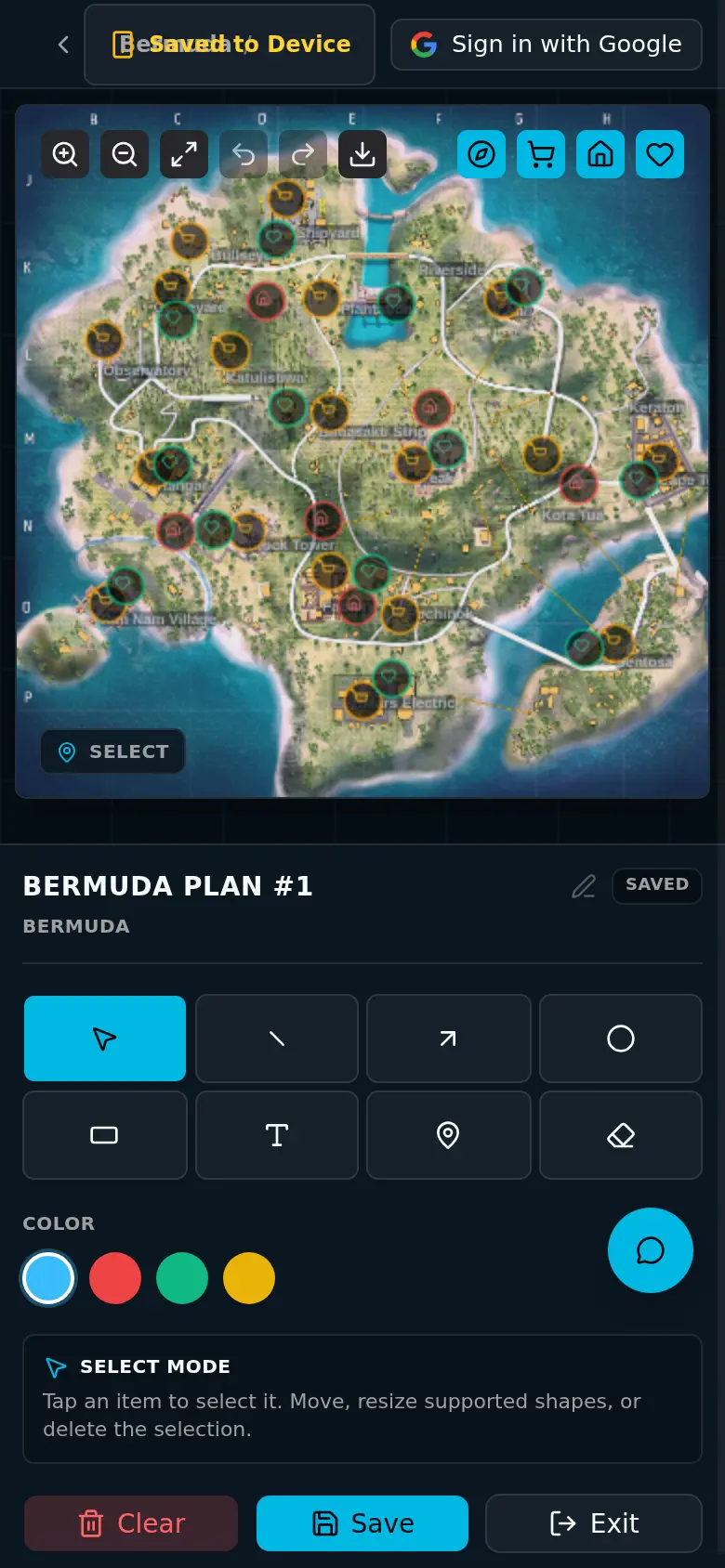
MapLainer is engineered as a responsive, touch-first tactical strategy board for Free Fire. Whether you are orchestrating a split-drop in Bermuda's Clock Tower or managing a bridge barricade in Purgatory, this guide covers everything required to master touch drawing, compact marker sizing, and instant mobile gallery exports.
Step 2: Placing Compact Squad Markers & Custom Character Callouts
When coordinating a 4-man Battle Royale squad or Clash Squad push, default UI pins can easily cover up small houses, crates, and vending machines. Player feedback highlighted the need for smaller icons for dense tactical areas.
MapLainer provides three marker size presets (Small, Medium, Large):
- Small (16px): Ideal for tight compound defense layouts (e.g., Brazilian houses or Kalahari Command Post).
- Medium (24px): Standard view for squad drop distributions across major named landmarks.
- Large (32px): High-contrast markers for tournament stream screenshots and macro zone safe-havens.
Each pin supports squad role icons (IGL, Rusher 1, Rusher 2, Sniper/Support) as well as active character badges (Tatsuya, Skyler, Oscar, Dimitri). You can append custom text up to 20 characters (e.g., 'Oscar / GL Wall Break' or 'Sniper Ridge') to communicate exact duties.
| Role | Marker Color | Icon Type | Recommended Size | Standard Label |
|---|---|---|---|---|
| IGL / Rotator | Bright Green | Compass / Crown | Medium (24px) | IGL - Calls & Route |
| Entry Rusher 1 | Crimson Red | Crosshairs / Swords | Small (16px) | Tatsuya - Front Breach |
| Flanker / Rusher 2 | Amber Orange | Lightning / Boot | Small (16px) | Skyler - Gloo Melter |
| Sniper / Anchor | Electric Blue | Target Scope | Small (16px) | Oscar - High Ground |
Step 3: Sketching Multi-Phase Rotations and Erasing Mistakes
A clean tactical board avoids confusing zigzag scribbles. Pro IGLs draw paths following the 3-line standard:
1. Solid Green Line: Primary rotation path under normal zone pulls.
2. Dashed Yellow Line: Contingency flank route if the primary choke point is contested.
3. Dotted Red Line: Aggressive breach or crash path into an Arsenal or high-ground compound.
If an arrow heading is misaligned or misplaced, do not clear the whole screen. Tap the 'Undo' button in the toolbar to immediately retract the last line, or activate the 'Eraser' tool and tap the single path or marker to eliminate it cleanly.
Step 4: Saving to Phone Gallery vs. Browser Cloud Save (The Big Difference)
A critical point of confusion from player feedback ('Saved but not showing in gallery' / 'No me deja descargar') stems from the distinction between browser caching and file downloading.
Here is how to ensure your tactical board lands safely in your phone gallery:
- What 'Save' Does: The 'Save' button commits your current strategy layout to your browser's persistent storage. If you accidentally close your browser tab or receive an incoming phone call during briefing, reopening MapLainer will restore your complete diagram.
- What 'Export / Download PNG' Does: The 'Download' or 'Export PNG' button renders the entire interactive canvas into a crisp 1080p standalone PNG image file. This file downloads directly to your device storage.
Follow the operating-system-specific steps below to save files smoothly:
Saving on Android (Chrome, Samsung Internet, Opera)
- Tap the 'Download PNG' button in the upper toolbar.
- Chrome displays a prompt: 'Downloading file... strategic-board.png'. Tap 'Open' or swipe down your notification tray.
- Open your native Gallery or Google Photos app; find the tactical diagram in the 'Download' or 'MapLainer' album.
- Directly share to WhatsApp, Discord, or Instagram Stories from the gallery share tray.
Saving on iOS (Safari, Chrome on iPhone / iPad)
- Tap 'Download PNG'. Safari displays a confirmation dialog: 'Do you want to download strategic-board.png?'. Tap 'Download'.
- Tap the blue download circle icon in the Safari search/address bar and tap the downloaded image.
- Tap the iOS Share Sheet icon (square with upward arrow) in the bottom-left corner.
- Select 'Save Image' (with the photo gallery icon). The strategy board is now saved directly to your Camera Roll / Photos app!
Step 5: Streamlining Pre-Match Briefings on Discord & WhatsApp
Once your strategy graphic is saved to your camera roll, integrate it into your pre-match routine. Top esports teams paste the exported diagram into their Discord #tactics channel 10 minutes before room ID & password release.
Pair your visual board with a 3-bullet text briefing:
1. Drop Zone & Loot Split: Who loots which house and who secures the nearby Vending Machine tokens.
2. Phase 2 Safe Zone Trigger: The exact timing when the anchor calls for rotation lines.
3. Arsenal Key Priority: Which squad member buys the Arsenal key if 800 tokens are accumulated early.
With visual clarity on mobile, your team minimizes hesitation and executes high-placement finishes consistently.
Open MapLainer on your phone, choose Bermuda or Purgatory, and design your squad drop plan in under 60 seconds!
Open Mobile Strategy BoardFrequently Asked Questions
Why doesn't tapping 'Save' put the strategy map into my Android or iOS photo gallery?
The 'Save' button in MapLainer saves your board state directly to your browser's local cache (localStorage) so your drawings persist across page reloads. To save an image file into your phone gallery, tap the 'Download / Export PNG' button in the toolbar. On Safari (iOS), tap 'Download', then tap the Share sheet icon and select 'Save Image'. On Android Chrome, the file automatically saves to your 'Downloads' folder and appears in Google Photos / Gallery under 'Downloads'.
How do I draw arrows without accidentally dragging or scrolling the webpage on mobile?
MapLainer features a touch-lock canvas. When an active drawing tool (Line, Arrow, Freehand, or Safe Zone) is selected, touch gestures draw directly on the canvas instead of scrolling the page. To zoom in or reposition your view, switch to the 'Hand / Pan' tool, pinch-to-zoom to the desired POI, and re-select your drawing tool.
How do I delete a single misplaced arrow or squad marker on a phone without clearing the whole board?
Use the 'Undo' button in the top control bar to immediately step backward one action, or select the 'Eraser' tool and tap directly on the specific path or marker you wish to remove. Never tap 'Clear Canvas' unless you want to wipe the entire map reset.
Can I label individual squad member names or character combos on mobile?
Yes. When you tap to place a marker (e.g., Scout, Entry, Sniper, Anchor), a label input appears supporting up to 20 characters. You can input player gamertags or tournament character skill combos (such as 'Tatsuya / Skyler' or 'Oscar / Sonia') so each teammate understands their precise deployment spot.